MIDIC15 MIDI CC Controller Manual0. Connecting the Device1. Control Panel Overview2. Compatible DAW SoftwareStudio One Setup GuideAbleton Live Setup GuideLogic Pro Setup GuideCubase Setup GuideFL Studio Setup GuideReaper Setup GuideCakeWalk Sonar Setup Guide3. Configuring MIDI CC Output (Software-Configured, Stored Internally)Custom MIDI Configuration — Video Tutorial3.1 Configuring the Device's MIDI CC Messages3.2 Verifying Output with MidiView MonitorDownload MIDI VIEW Software4. Additional Notes
MIDIC15 MIDI CC Controller Manual
0. Connecting the Device
- Connect to your computer via USB cable. Both USB Type-A and USB Type-C ports are supported.
- Compatible with macOS, Windows, Linux, and other major operating systems.
- No driver installation required. The device is automatically recognized by music software upon connection.
1. Control Panel Overview
- 15 x 12mm Plastic Knobs
- Maximum Rotation: 300° (non-endless)
- Yellow Backlighting
- Software-Configurable MIDI Messages
- MIDI 1.0 Protocol
- Adjustment Range: 0–127
- Resolution: 1 step
2. Compatible DAW Software
This device is primarily designed for controlling the Mixer (MixConsole) section in most DAW software. It also excels at real-time MIDI CC input — for example, drawing string expression curves in Cubase. Common applications include adjusting track volume, left/right panning, knob parameters, and controlling supported MIDI-compatible plugins. The links below provide brief guides on how to assign functions to this MIDI device in various DAWs.
Studio One Setup Guide
Ableton Live Setup Guide
Logic Pro Setup Guide
Cubase Setup Guide
FL Studio Setup Guide
Reaper Setup Guide
CakeWalk Sonar Setup Guide
- Note: In Pro Tools and Samplitude, the device can only be used for CC automation drawing and cannot be mapped to control volume or other mixer parameters.
3. Configuring MIDI CC Output (Software-Configured, Stored Internally)
When using the device to control specific MIDI CC messages — such as inputting CC data or drawing string expression curves in Cubase — you must assign specific MIDI CC numbers to the physical knobs.
Custom MIDI Configuration — Video Tutorial
3.1 Configuring the Device's MIDI CC Messages
The MIDIC15 MIDI controller supports modifying its outgoing MIDI CC messages via software. The device has internal memory, so configured settings are automatically saved after being written.
First, download the configuration utility:
The software is available in both macOS and Windows versions. Please select the correct version for your operating system.
Enter the Hardware ID, Message Type, Channel, and Controller Number, then click the Set button. Wait a moment for the configuration to complete.
Important: Close all music software before configuring to prevent the device from being occupied, which may cause the setup to fail.
Note: This limitation applies primarily to Windows. On macOS, you can typically configure the device even while your DAW is running.
3.2 Verifying Output with MidiView Monitor
We strongly recommend using this tool — or similar utilities — to verify the MIDI CC messages output by the device. This is helpful for adjusting and changing the MIDI CC assignments of the knobs. Many DAWs also have built-in MIDI monitoring capabilities, eliminating the need for third-party tools.
Since configuring the device does not provide visual feedback, this tool allows you to see in real time whether the MIDI messages are being set correctly.
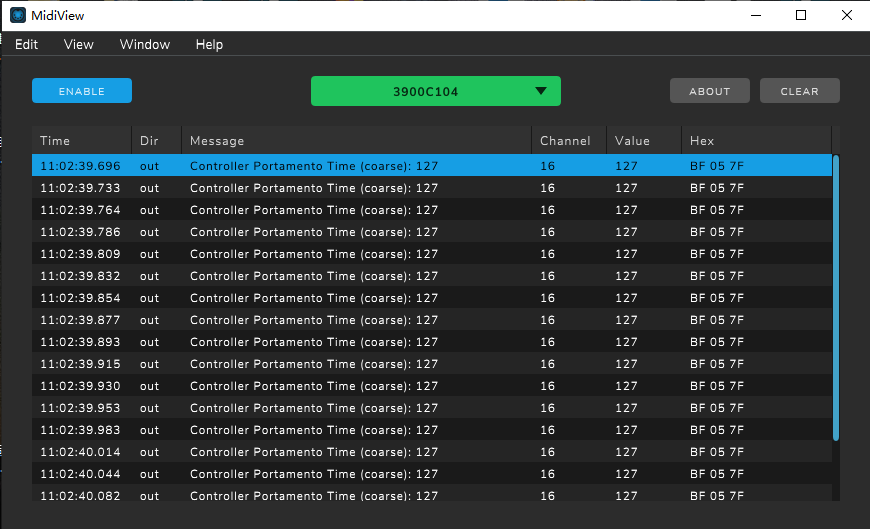
This software supports both macOS and Windows.
Windows Note: Ensure the MIDI device is not already in use by another application when launching the monitor.
Download MIDI VIEW Software
4. Additional Notes
- Avoid using excessively long cables, as insufficient power supply may affect precision.
- Windows: A MIDI device can typically only be accessed by one application at a time. If your DAW is occupying the device, you will not be able to open the configuration software to adjust MIDI settings.
- macOS: This limitation does not apply. You can modify MIDI settings at any time, even while your DAW is running and actively using the device.